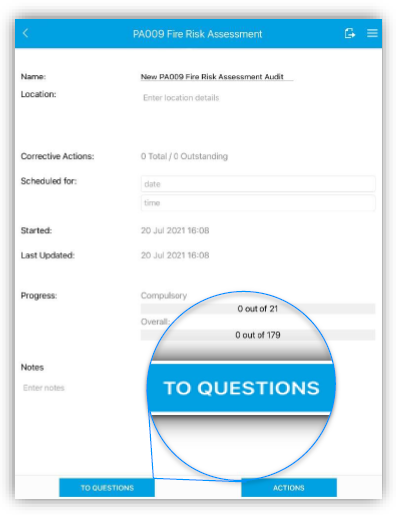
Open or start the audit you will be using and go to the questions. In this instance we will be using the Fire Risk Assessment.
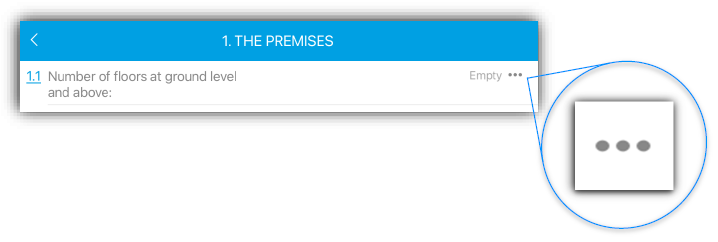
Click on the icon consisting of 3 dots on the far right of each question allow you to go into more detail with the question (being able to add notes, pictures and corrective actions).
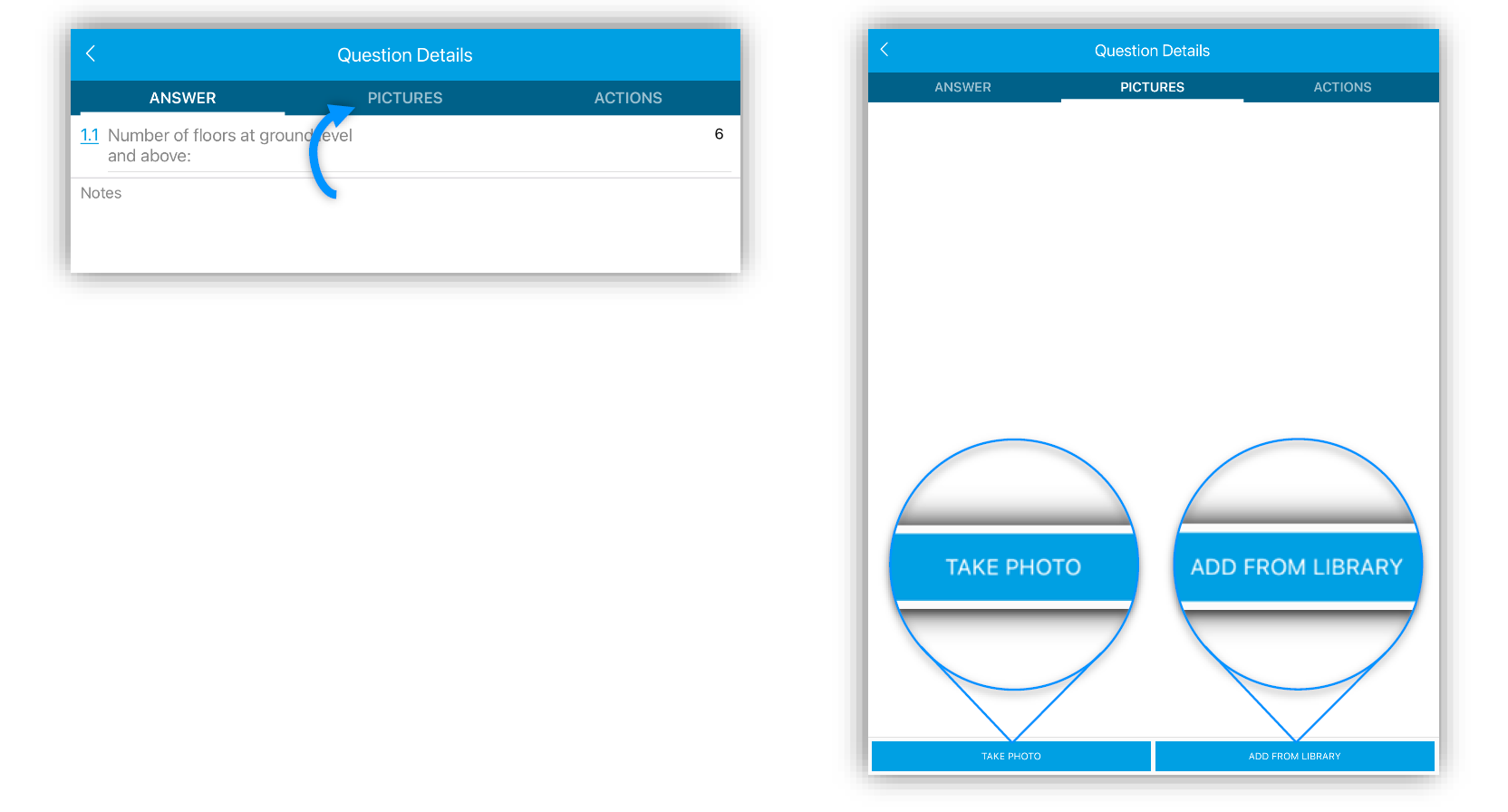
Navigate to the ‘Pictures’ tab, on the right and click the ‘Add Action’ button at the bottom of the page.
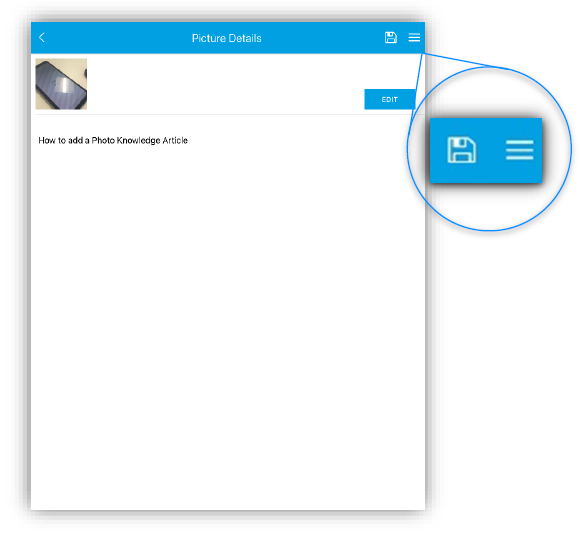
This allows you to take a photo or select a pre-existing photo in your library. The save icon along with a burger menu containing various options (for example: to delete the photo) are available in the top right of the screen.
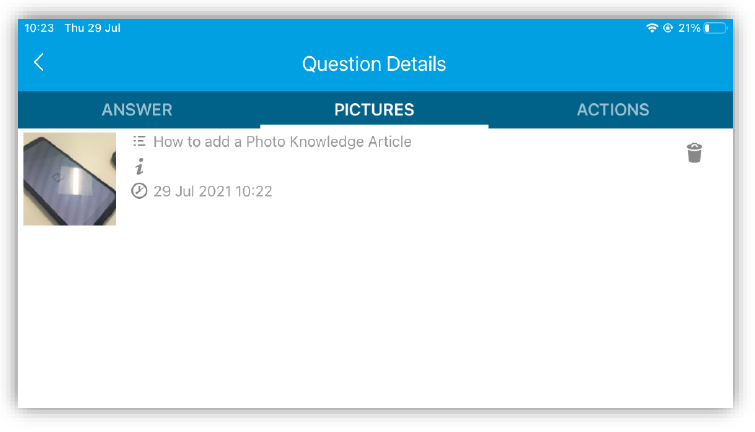
Once you have saved and you go back to the Questions Details you will be able to see your photo that is assigned to your question.
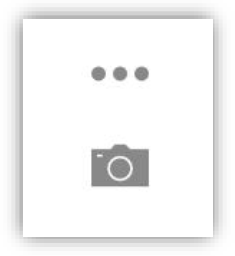
On the right-hand side, a camera icon should appear under the 3 dots next to the question to signify that you have successfully added a photo to your question.