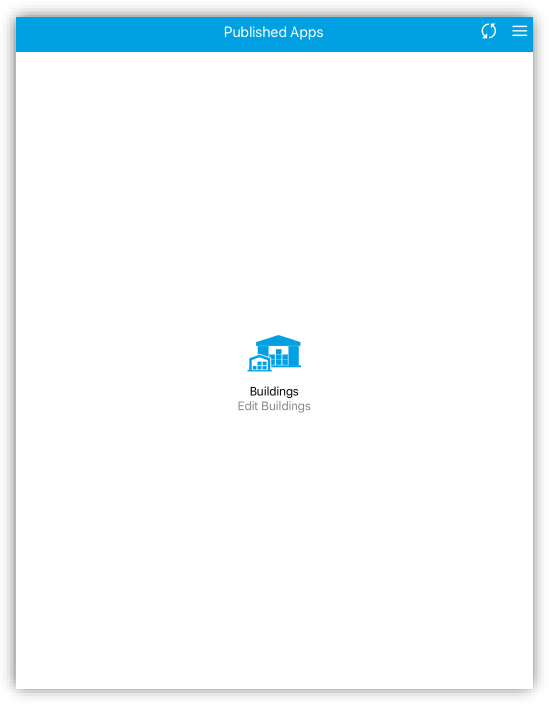
On the published app home screen there will be a building icon called Buildings (Edit Buildings). The icon looks like the following
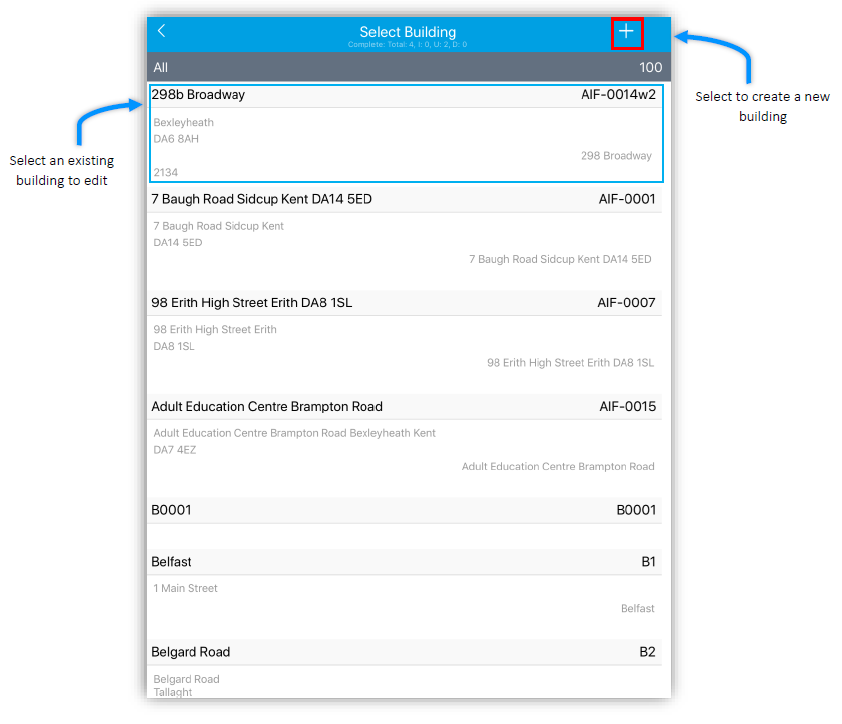
Clicking this icon will take you to all the building which have currently been created. These can be edited by clicking on them. You can create a new building but clicking the ‘+’ in the top right of the Mobiess application.
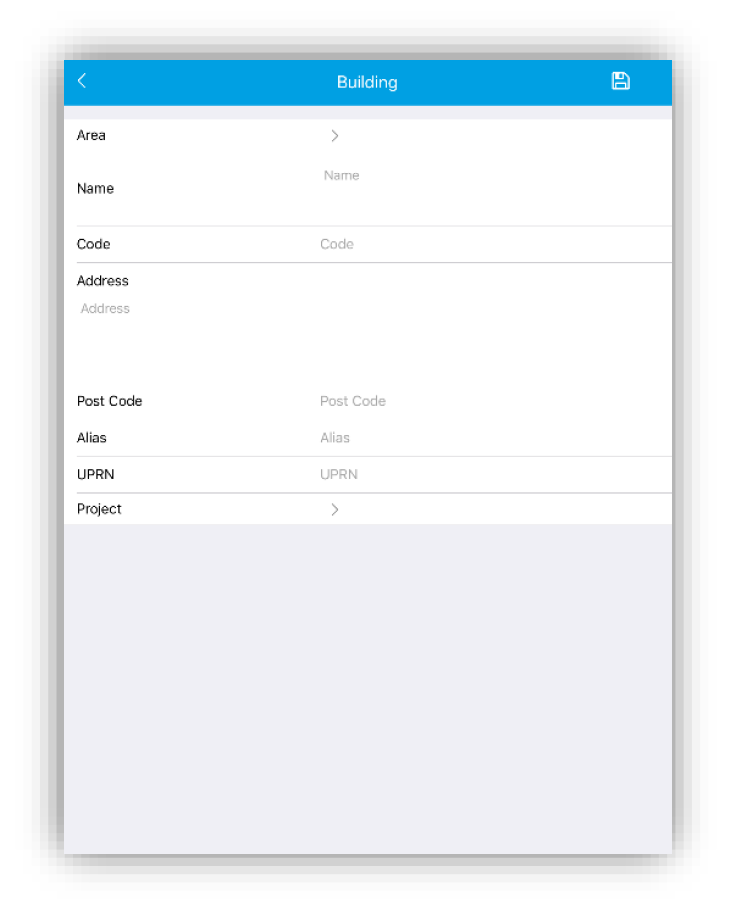
In the edit / create screen you can alter the data already returned or if you have selected to create a new building you can enter your building information into the fields provided.
Once you have entered the data for your building make sure to click the save button in the top right corner. This will save any changes for your building.